Getting started
TSBot is a great way to create your own TeamSpeak Server Query bots.
TSBot will manage connection to your TeamSpeak server,
schedule background tasks, and handle events and commands.
Creating a new TeamSpeak identity
It’s recommended to create a new identity for your bot account. This isn’t strictly necessary but separating your Main Identity from a Bot Identity allows you to set different Permissions and server/channel groups. Basically this allows the server to treat you and your bot differently.
Launch your TeamSpeak Client and head on to:
Tools → Identities

Here we create a new identity for your bot account

Create a new identity by clicking on
Create.Modify
Identity NameandNicknameto match your preference.
Now you are ready to connect to a server with your Bot Account identity.
Connecting with specific identity
Now that we have an identity for your Bot Account, You can use it to connect to your server:
Connections → Connect

To change your connection identity:

Click
▼ Moreon the bottom left.Select the right identity from the
IdentitydropdownConnect
Setting up permissions
In order to get your bot to work, you need to give it some permissions.
Recommended ways to give these permissions are:
With Server Groups:
Give a server group the permissions needed and give the bot client a such server group.
With Client Permissions:
This will give the permissions to a specific client UID.
Essential
Permission name |
Reason |
|---|---|
|
To create/modify ServerQuery accounts |
|
To register the server to send events to the bot |
Recommended
Permission name |
Reason |
|---|---|
|
To send messages in Server chat |
|
To send messages in Channel chat |
|
To send messages in Private chat. |
Creating ServerQuery login
Now that we are connected, we are ready create the login for your ServerQuery account.
Tools → ServerQuery Login

Note
If you can’t click on the ServerQuery Login, you don’t have the proper permissions on your client.
Check Setting up permissions for more information.
This will prompt you for a ServerQuery login. Enter a suitable login name for your bot.

Warning
Don’t make your login name too complicated. You should’t have spaces or special characters in your login name. This can cause you to be unable to login.
After clicking OK, you will be prompted with Your ServerQuery Login.
Take a note of the Name and Password, these are your username and password when logging in.

Note
If you lose your login info or want to change login name, just repeat the steps in this section. This will generate you a new login.
Show connected query clients
By default, TeamSpeak doesn’t show connected query clients.
To enable this feature you need to add the server to your Bookmarks and editing the bookmark.
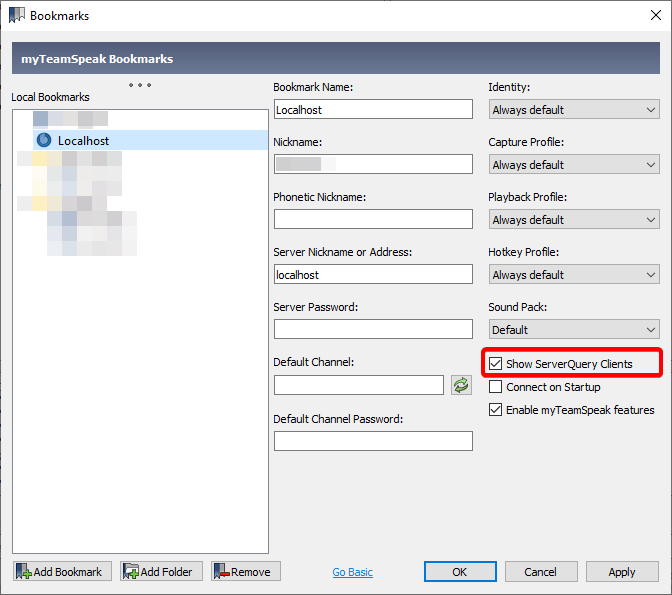
After reconnect to the server using the bookmark and you’ll see the connected ServerQuery clients.

Note
If you still don’t see the ServerQuery client, check permissions.
Your permissions |
Is |
ServerQuery client permissions |
|---|---|---|
|
>= |
|
Creating ServerQuery bot with TSBot
To create our first TSBot, we can use the examples/simple_example.py
Let’s copy the example and modify the script to fit our needs:
Replace
USERNAMEwith your ServerQuery Name.Replace
PASSWORDwith your ServerQuery Password.Replace
ADDRESSwith your TeamSpeak server address.
 1from __future__ import annotations
 2
 3import asyncio
 4
 5from tsbot import TSBot, TSCtx, query
 6
 7bot = TSBot(
 8    username="USERNAME",
 9    password="PASSWORD",
10    address="ADDRESS",
11)
12
13
14@bot.command("hello")
15async def hello_world(bot: TSBot, ctx: TSCtx):
16    await bot.respond(ctx, f"Hello {ctx['invokername']}!")
17
18
19@bot.on("cliententerview")
20async def poke_on_enter(bot: TSBot, ctx: TSCtx):
21    poke_query = query("clientpoke").params(clid=ctx["clid"], msg="Welcome to the server!")
22    await bot.send(poke_query)
23
24
25asyncio.run(bot.run())
Now run the script. A ServerQuery client should join to your server.
As long as the script is running, every time someone joins the server, they will get poked with this:

And you can use command !hello to say hello to the bot

Using raw connection
By default, TSBot will use SSH connection.
If you don’t need the connection to be encrypted E.g. the bot is running on same host as the TeamSpeak server, or the TeamSpeak server doesn’t have SSH connections enabled, you can use raw connections.
bot = TSBot(
    username="USERNAME",
    password="PASSWORD",
    address="ADDRESS",
    protocol="raw"
)